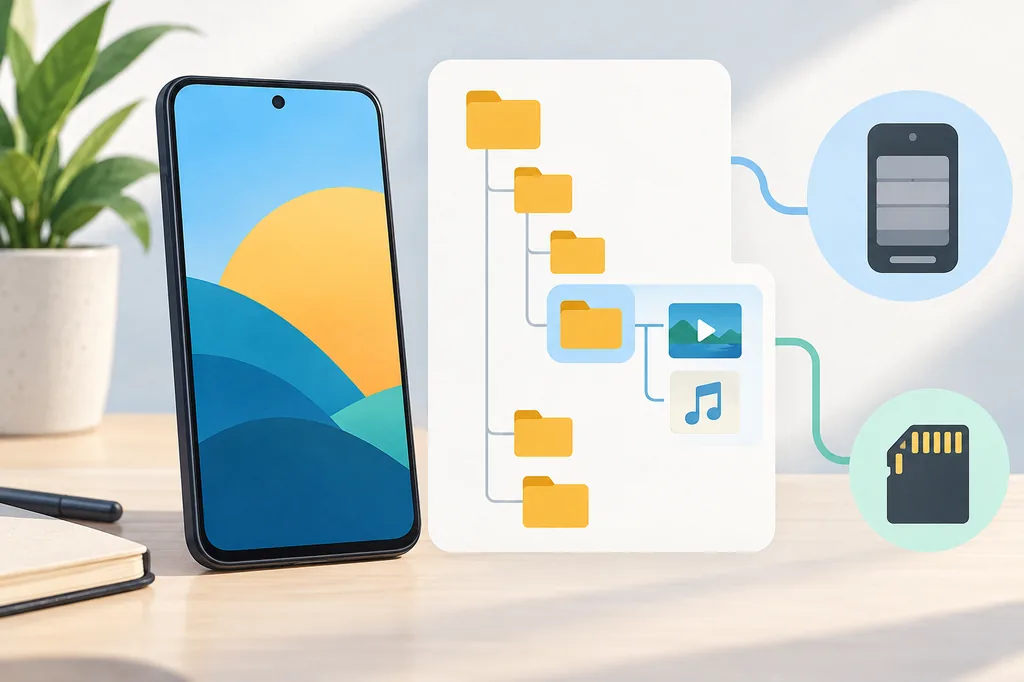
Quick answer: where is the VidMate download folder?
There is no single folder that is identical on every VidMate build and Android phone. Start in the Android file manager with Downloads, Movies, Video, or a VidMate-named media folder, then sort by recent files and check the storage volume shown in the download settings or file details. If the file is missing, confirm that the download completed, review Android storage permissions, refresh the media index, and check the SD card only when the phone actually has one. Do not delete the original or install a new APK until you know whether the problem is location, visibility, or an incomplete file.
Start with the file manager
Search recent MP4, MP3, or other media files across internal storage and any mounted SD card.
What the VidMate download folder actually means
The phrase VidMate download folder describes the place where a completed video or audio file is stored on your Android device. It is not necessarily a public folder with one fixed name. The app may save to a standard Downloads or Movies directory, a media folder chosen in its settings, a device-specific Android media location, or a removable SD card. The same phone can also show different paths after an app update, a reset, a storage change, or a manual move.
How to find the current VidMate download location
Use one known download as your test case. A short video or audio file is easier to identify than a long queue with similar names. Keep the download list open long enough to see a completed state, final filename, and stable size. If the app lets you choose a storage destination, note the displayed folder before leaving the screen.
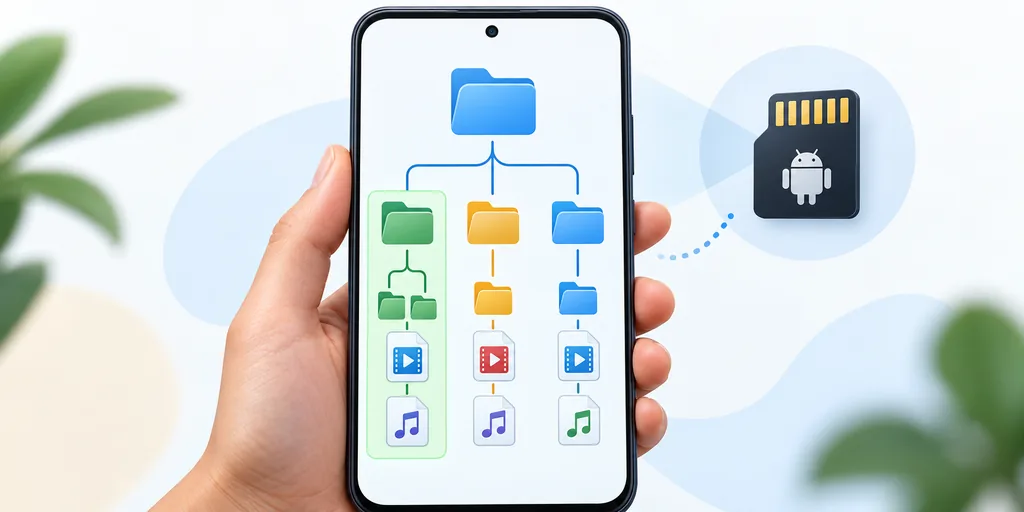
Finish one download
Wait until the VidMate download has a final extension and a stable size. A paused, zero-byte, or temporary file is not ready for a folder test.
Open the Android file manager
Check Internal storage first, then Downloads, Movies, Video, Music, and any folder whose name includes VidMate or the source service.
Sort by recent files
Use the newest date and a media filter when available. Search for MP4, WEBM, MP3, M4A, or the extension selected in the VidMate download dialog.
Common Android folders to check first
Folder names are useful search starting points, not guarantees. Android file access has become more controlled over time, and an app can save in a location that the system file picker displays differently from a third-party file manager. Check the path shown by the file details panel and avoid moving a file just because a web page lists a familiar directory.
| Location to check | What it can tell you | What to do next |
|---|---|---|
| Downloads | The file was saved through a standard Android download route | Open details and note the exact parent folder |
| Movies or Video | The app or media scanner categorized the file as video | Test the file directly and refresh the VidMate library |
| Music or an audio folder | An MP3, M4A, or other audio choice was used | Check the extension and the audio player's file list |
Why a VidMate download is not showing in the folder
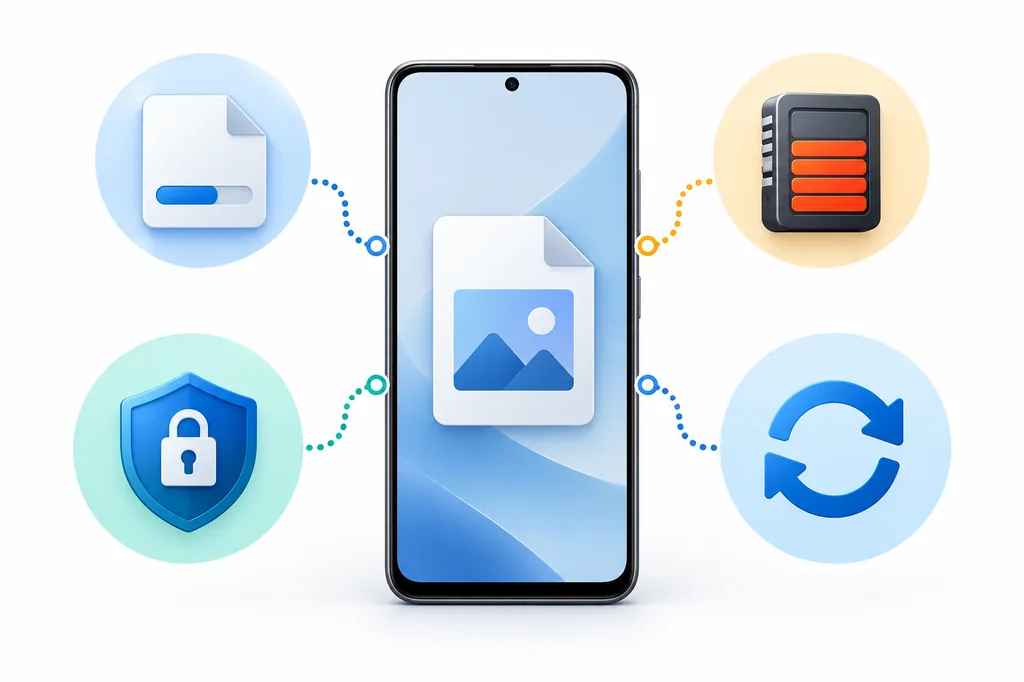
A missing file does not automatically mean that VidMate used a secret folder. The download may have stopped before completion, the file manager may be looking at the wrong storage volume, or Android may not have refreshed the media index. A filename can also look different from the title shown in VidMate, especially when a source uses punctuation, emojis, or a generated identifier.
| Symptom | Likely explanation | Safe first action |
|---|---|---|
| Nothing appears | Wrong storage volume or download never completed | Check Internal storage and the SD card, then review the download list |
| A zero-byte file appears | The request started but no media data was saved | Delete only the failed temporary file after recording the error |
| File exists but library is empty | Media index or folder permission is stale | Open the file directly, refresh the library, and review app access |
How to move VidMate downloads to an SD card
Moving a file is different from changing the default download destination. If you only need more space, copy one completed file to the SD card and test the copy before deleting the original. This protects you from a failed transfer, an unmounted card, or a card that is formatted in a way the phone cannot reliably write to.
Check the card first
Confirm that Android shows the SD card as mounted, that it has free space, and that the card is not reporting errors.
Copy one completed file
Use Copy for the first test instead of Move. Preserve the original internal-storage file until the copy opens and seeks normally.
Open the copy from its details
Verify the new path, file size, and last-modified time. Play a short section and check audio before removing the original.
Storage permissions and Android version limits
Android permission labels depend on the operating system and device maker. The safest approach is to read the permission screen on the phone instead of copying a generic list from a download page. A media downloader may need access to save or read files, but a request for unrelated device-admin, accessibility, contacts, or SMS control is a reason to stop and reassess the source.
- Review VidMate's current Android permissions and grant only what the device and task require.
- Keep Play Protect, browser protection, and the phone's security updates enabled.
- Leave enough free internal or SD-card space for the complete file and temporary download data.
- Use the system file picker when Android restricts a folder instead of installing a file-access helper from an unknown source.
Separate download, folder, and playback problems
These three problems look similar but need different checks. A download problem ends with no stable file. A folder or visibility problem leaves a completed file somewhere on the phone but hides it from the library. A playback problem occurs when the file is visible and complete but has no picture, no sound, stutters, or refuses to seek. Treating all three as an APK problem often leads to unnecessary reinstalls and untrusted mirrors.
| Your result | Most likely boundary | Relevant next guide |
|---|---|---|
| No completed file | Source, network, or download state | A platform-specific VidMate download guide |
| Completed file in file manager only | Folder visibility, media index, or access | This folder and storage guide |
| File opens but has no sound or stutters | Format, decoder, audio route, or device performance | The VidMate Player guide |
Safety boundaries when searching for a saved file
A missing download is frustrating, but it is not a reason to disable Android protections or install a MOD APK that promises a new folder. A modified package can change storage behavior, permissions, and file handling without recovering a partial download. Keep the current app and source record until you understand what happened, and use the site's safety page when the installer itself is in doubt.
Android storage references
These first-party references explain Android storage behavior and permission boundaries. They provide platform context, not a universal VidMate path.
Related VidMate guides
VidMate Download Folder FAQ
Find the file before changing the app
The quickest VidMate download-folder fix is a controlled file check: finish one download, search recent media across internal storage and any mounted SD card, read the full path, and test the file from that location. If it is complete but hidden, refresh the library and review storage access. If it is incomplete, fix the download conditions. Keep the original and avoid an unverified APK until the evidence points to an app problem.
Open the VidMate APK entry point