Quick answer
VidMate can be installed safely only when the APK comes from a clear source, matches the stated version and file details, avoids mod or repacked labels, passes Android security checks, and asks for permissions that fit a video downloader. The word VidMate on a page, icon, or filename is not enough proof. Treat safety as a checklist, not a yes-or-no promise.
Source matters
A clean APK page should show app name, version, file size, Android requirement, and install context before download.
Permissions need review
Storage, network, and media access can fit a downloader; unrelated sensitive permissions should make you pause.
Avoid modified APKs
Mod, premium unlocked, cracked, patched, or ad-free claims often mean the original APK behavior was changed.
Is VidMate safe to install?
The careful answer is conditional. VidMate is an Android APK, so the safety question is not only about the app name. It is about where the file came from, whether the file identity is consistent, what Android warns about, and whether the permissions match the job of a video and music downloader.
A clean VidMate APK install should be explainable before you download it. The page should identify the version, file size, Android requirement, and reason for APK installation. The installer should show a matching app identity, and the app should not ask you to disable every protection layer or install unrelated helper apps.
This page is separate from the main download page, the Play Store guide, and the old-version guide. The goal here is to help you judge safety signals before installing any VidMate APK, including the current version and version-specific files such as 5.3602.
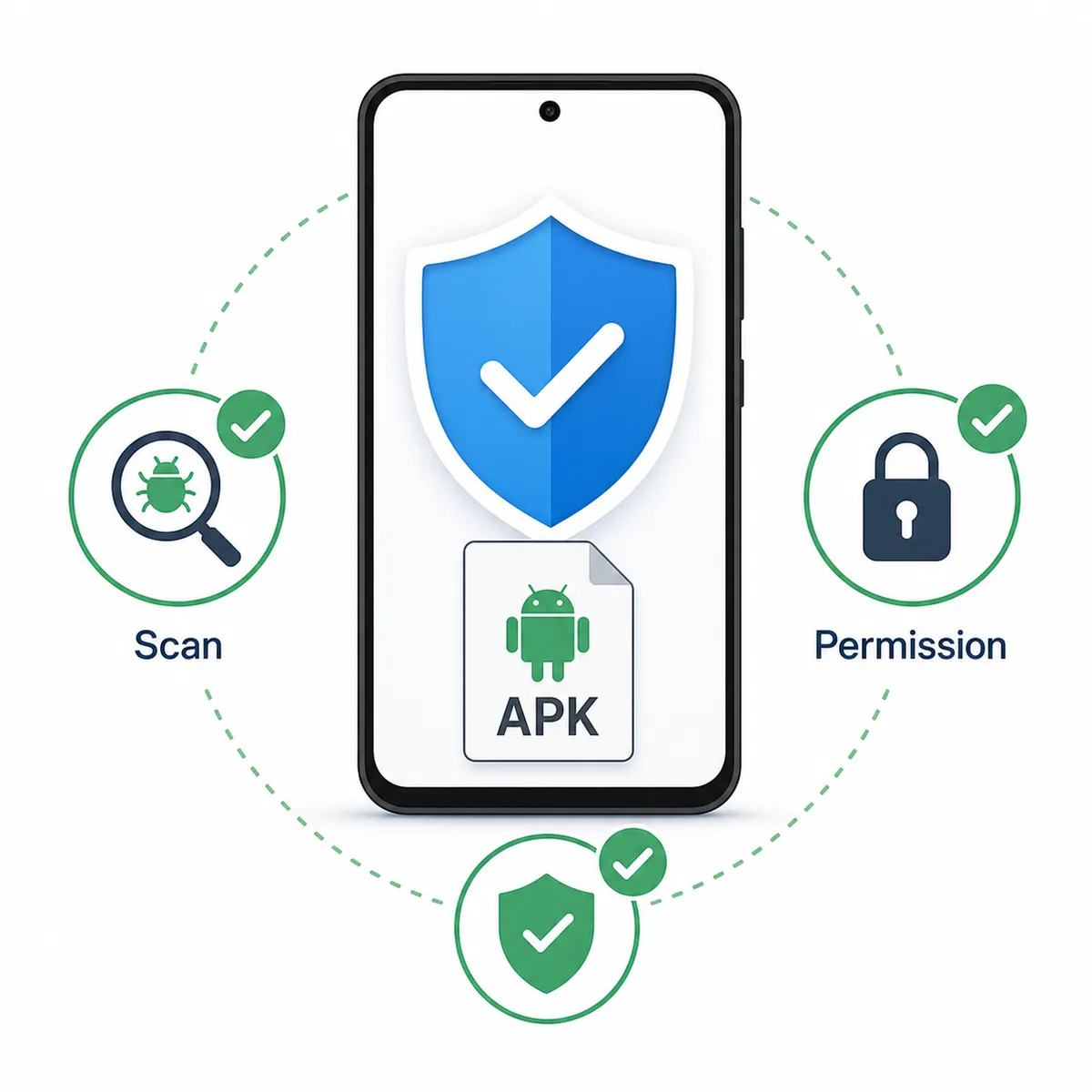
VidMate APK safety checklist before download
Start with the source page. A trustworthy APK page should make basic file details easy to inspect. If the download button hides the file name, sends you through many redirects, or promotes a bundle instead of a single APK, the risk is higher.
Next, compare the file behavior with the page promise. A page can rank for VidMate while delivering a different file, an outdated build, or a modified package. If the visible version, filename, installer label, and page description do not agree, stop before installing.
Finally, keep Android security features active. Play Protect and browser warnings are not perfect, but they are useful friction when installing outside Google Play. A page that tells you to turn off all scanning to make the install work is asking for too much trust.
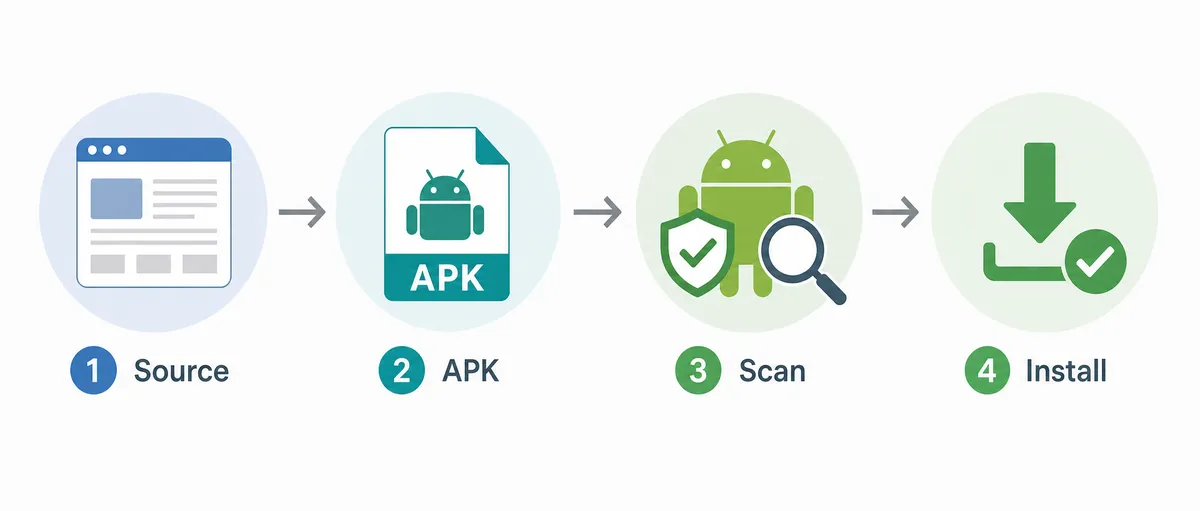
- The page shows a clear VidMate version, file size, Android requirement, and update context.
- The downloaded file is a single APK, not a forced bundle or unrelated installer.
- The installer label and source page describe the same app and version.
- Play Protect, browser protection, and file-manager warnings do not show strong harmful-app alerts.
- The page does not advertise mod, cracked, patched, premium unlocked, or ad-free builds.
- You understand why the app is installed outside Google Play before enabling unknown-app permission.
Which VidMate permissions are normal, and which are warning signs?
A video downloader normally needs network access to fetch media and storage or media-library access to save files. Depending on Android version, it may also need notification access for download progress or limited file access for choosing a save folder. Those permissions can make sense when the app clearly explains why they are needed.
Be more cautious when a downloader asks for permissions that do not match its visible purpose. Broad contact access, SMS access, accessibility control, device admin control, or permission prompts that appear before you use a related feature deserve extra scrutiny. The issue is not that every permission is automatically harmful; it is whether the request is proportional to the feature you are using.
Android settings can vary by brand and version, so read the permission screen instead of clicking through quickly. If you are unsure, deny optional permissions first and test whether the app still performs the basic download workflow.
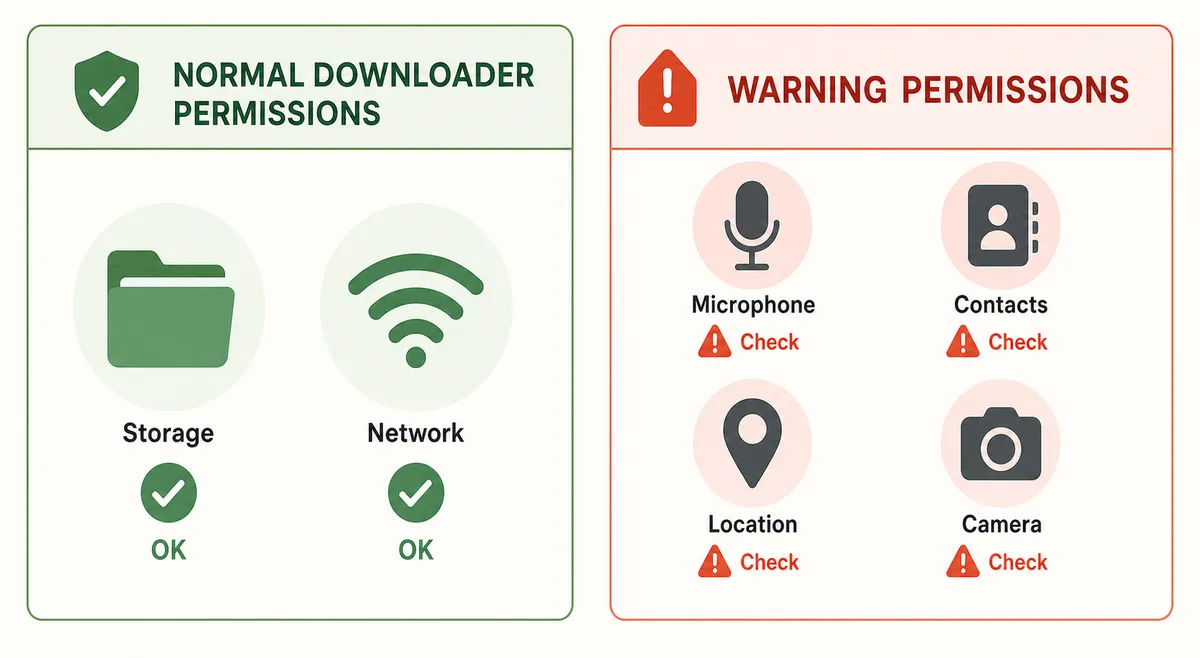
| Permission area | When it can make sense | When to pause |
|---|---|---|
| Network | Needed to search, stream, and download media | The app forces unrelated proxy, VPN, or extra installs |
| Photos, videos, or storage | Needed to save and manage downloaded files | The app requests broad file access without explaining download storage |
| Notifications | Useful for download progress and completion alerts | The app uses notifications mainly for ads or aggressive prompts |
| Contacts or SMS | Rarely needed for a downloader | Requested during install or before any relevant feature |
| Accessibility or device admin | Usually not needed for a simple video downloader | Required before the app lets you use normal download features |
How to use Play Protect and Android warnings
Google Play Protect is designed to check apps from Google Play and can also scan apps from other sources. That does not mean every third-party APK with no warning is guaranteed safe, but it gives you another signal when you install outside the store.
A mild browser warning about APK files is common because APK installation is more powerful than opening a normal document. A strong warning that names harmful behavior is different. Treat strong Play Protect, browser, or file-manager alerts as a reason to stop and re-check the source.
Also control the unknown-app permission narrowly. On modern Android, you can usually allow installation only for the browser or file manager you are using. After installing, turn that permission off if you do not need it for future updates.
Keep scanning enabled
Do not disable Play Protect just because an APK page says the install will be easier.
Read the exact warning
Separate a general APK caution from a specific harmful-app warning.
Limit unknown-app access
Allow only the installer app you used, then remove that permission after setup.
Retest with a clean source
If warnings appear, compare the file with the main download page or another trusted source before trying again.
Why VidMate mod APK safety claims are risky
Many unsafe APK pages use attractive phrases such as mod, premium unlocked, no ads, cracked, or patched. Those phrases suggest the APK may have been changed from the original release. Once a file is modified, the visible app icon and version number no longer prove how the app behaves.
Modified APKs can break updates, change permissions, add tracking, inject ads, or hide code that the original developer did not ship. Even when a mod works today, it can leave you with an update path you cannot verify later.
If your goal is a normal VidMate install, choose a clean APK and avoid pages that lead with unlocked features. If your goal is troubleshooting an old device or a specific build, use the old-version or 5.3602 guide and keep the same safety rules.
| Claim on APK page | What it may mean | Safer response |
|---|---|---|
| Premium unlocked | The APK may be altered or repacked | Avoid unless you can verify the developer and file identity |
| Ad-free patched | Code may have been changed after release | Prefer a clean APK with predictable behavior |
| No verification needed | The page may be asking you to skip safety checks | Keep Play Protect and Android warnings enabled |
| Fastest latest version | May be a keyword label rather than the real file version | Compare version, size, and installer label |
A safer VidMate install decision flow
Use a simple rule: install only when the source, file, Android warning, and permission request all make sense together. One good signal is not enough. A familiar name with a suspicious permission request is still suspicious. A clean-looking page with a different installer label is still inconsistent.
If the checklist fails, do not keep trying random mirrors. Go back to the main VidMate APK page, read the Play Store guide if you came from a store search, or use the old-version guide if your real problem is compatibility. The safest path is the one that matches your actual intent.
After installing, test the app with a low-risk workflow first. Open it, review settings, try a small download you are allowed to save, check the storage folder, and remove unknown-app permission if you do not need it. If the app behaves unexpectedly, uninstall it and review the source before trying another file.
| Your situation | Best next page | Why |
|---|---|---|
| You want the current APK | Main VidMate APK download page | It lists current version, file size, and install notes. |
| You searched in Google Play | VidMate APK Play Store guide | It explains similar-name apps and APK install context. |
| You need an older build | VidMate APK old version guide | It covers rollback and compatibility risks. |
| You saw version 5.3602 | VidMate 5.3602 guide | It focuses on that exact version label and file identity. |
Official Android safety references
These official Google resources support the Android safety advice used in this guide.
Related VidMate guides
VidMate safety FAQ
Treat VidMate safety as a checklist
Do not install a VidMate APK only because the name looks familiar. Check the source, file identity, Android warnings, permissions, and mod claims together. If the signals agree, you can make a clearer install decision; if they conflict, stop and choose a safer route.
Download VidMate APK