Quick answer
VidMate is an Android APK, so it may run on some Android TV boxes, Chromecast with Google TV, and Fire TV devices after sideloading. It is not the same as a native TV app, and it may not feel comfortable with a remote. Before installing, confirm that your device supports APK installation, keep the unknown-app permission limited to the installer app, avoid modded APK claims, and test playback, search, download location, and storage access before relying on it.
TV-first decision
Use this guide when your main device is a TV box, Android TV, Google TV, or Firestick.
Sideload carefully
Unknown-app permission should be temporary and limited to the browser, file manager, or Downloader app.
Remote limits
Some mobile app screens are not optimized for TV remotes, so testing navigation matters.
Does VidMate work on Android TV?
VidMate is built as an Android app, not as a dedicated TV interface. That means the APK can sometimes be installed on Android-based TV devices, but installation support and daily usability depend on the device firmware, Android version, remote input, storage permissions, and whether the app can display correctly on a landscape screen.
The best candidates are Android TV boxes, Chromecast with Google TV devices, and Fire TV devices that allow sideloading. A basic smart TV that does not run Android or Fire OS will not install an APK directly. If your TV only has a built-in app store and no APK installation option, you need a compatible streaming stick or Android TV box instead.
This page is separate from the PC and iOS guides. PC users need an Android emulator, iPhone users cannot install APK files, and TV users need a sideload workflow designed around a remote control and shared living-room screen.
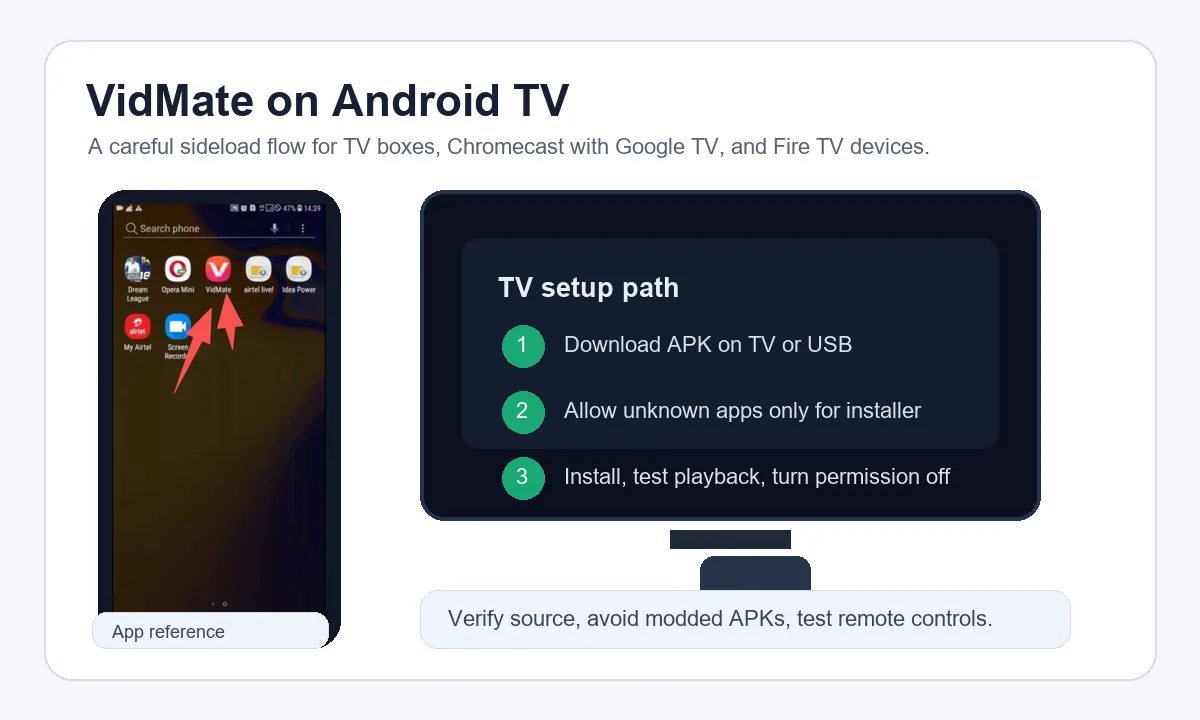
Device fit: Android TV, Google TV, Firestick, or basic smart TV
Before downloading anything, identify the operating system on your screen. Many users say smart TV when they actually mean Android TV, Google TV, Fire TV, or a generic TV box. Those differences matter because each platform handles unknown apps, file managers, storage, and remote input differently.
Use the table below to decide whether a TV setup is realistic. If your device does not support APK installation, do not waste time with files that promise one-click TV installation.
| Device type | Can install APK directly? | Best setup path | Main caution |
|---|---|---|---|
| Android TV box | Usually yes | Browser or file manager APK install | Check Android version and storage permissions |
| Chromecast with Google TV | Often yes | Enable unknown apps for the installer app | Remote navigation may be awkward |
| Firestick or Fire TV | Usually via sideloading | Use a trusted Downloader or file-transfer workflow | Developer options can be hidden on some Fire OS versions |
| Basic smart TV | Usually no | Use an external Android TV or Fire TV device | Do not install random TV packages |
| Windows PC connected to TV | No direct APK install | Use the VidMate for PC emulator guide | This is a PC workflow, not a TV APK workflow |
How to install VidMate APK on Android TV safely
A safe TV install starts with the source, not the button. Use a clear APK page, verify the version and file name, and avoid pages that promise premium unlocked, modded, ad-free, or cracked builds. Those labels usually mean the APK has been altered.
On Android TV and Google TV, the unknown-app permission is normally granted per installer app. That is better than leaving a broad system-wide setting on. Allow the browser, file manager, or Downloader-style app only while you install, then turn the permission off when setup is complete.
After installation, test the app in the exact TV workflow you care about. Search for a video, check whether the remote can reach the search box and quality selector, confirm playback opens, and verify where downloads are stored. If one of those steps fails, the app may be technically installed but not practical for TV use.
Confirm your TV platform
Open device settings and check whether the system is Android TV, Google TV, Fire OS, or a non-Android smart TV.
Download from a clear APK source
Use the main VidMate APK page first, then compare file name, version, size, and Android requirement before installing.
Allow unknown apps only for the installer
Grant permission to the browser, file manager, or Downloader app you used, not to unrelated apps.
Install and immediately test remote navigation
Open VidMate, search, select quality, play a video, and confirm that the remote can reach every control you need.
Turn off the permission after setup
Return to settings and disable unknown-app access if you no longer need it for updates.
Firestick and Fire TV notes
Firestick users often search for VidMate for Firestick because Fire TV devices are Android-based but use Amazon's interface and settings. The general logic is the same: the APK must be sideloaded, the source must be trustworthy, and the app must be tested with the remote.
Exact setting names can vary by Fire OS version. If developer options are hidden, Amazon's own help and device settings should be your reference. Do not follow a page that asks you to install several unrelated helper apps before you can open the APK.
Fire TV storage can be limited. If the app installs but downloads fail, check available space, app permissions, and whether the selected download folder is reachable from the TV interface.
- Use a known installer workflow and avoid APK bundles from unknown mirrors.
- Check free storage before downloading large video files.
- Keep the remote nearby during first launch; some mobile UI controls may require extra navigation.
- Remove any installer permission you no longer need after the APK is installed.
- Use VidMate only for content you own, have permission to save, or can legally download in your region.
TV install vs phone install: what changes?
Installing VidMate on a phone is usually simpler because the app was designed around touch input, personal storage, and a portrait screen. A TV setup adds a remote, a landscape layout, shared screen privacy, and sometimes a stricter file-access workflow.
The TV version of the decision is not only about whether the APK installs. It is about whether the app is comfortable enough to use from a couch and safe enough to keep on a shared device. If the app opens but the remote cannot reach important buttons, a phone or PC workflow may be better.
| Check | Phone install | Android TV or Firestick install |
|---|---|---|
| Input | Touchscreen | Remote, keyboard, or mouse may be needed |
| Layout | Portrait-first | Landscape screen can expose awkward mobile layouts |
| Storage | Personal phone storage | Limited TV storage or external drive workflow |
| Privacy | Personal device | Shared screen and family device |
| Best fallback | Latest APK or old version guide | Phone install, PC emulator, or streaming from another device |
Troubleshooting common TV install problems
If the APK will not install, first check whether the download completed and whether the file is meant for Android. A partial file, a renamed file, or a package requiring a newer Android version can fail before the app even opens.
If VidMate installs but does not behave well on TV, test with a Bluetooth mouse or keyboard if your device supports it. That can confirm whether the issue is remote navigation rather than the APK itself. If storage access fails, review app permissions and available device space before trying another APK.
If search, preview, or downloads fail inside the app, compare with the latest phone install guide and the old-version guide. Sometimes the problem is a temporary app/platform compatibility issue rather than a TV-specific installation problem.
| Problem | Likely cause | Practical fix |
|---|---|---|
| Install blocked | Unknown-app permission is off | Allow only the installer app, then retry |
| Parse error | Incomplete download or incompatible Android version | Download again and check version requirements |
| Remote cannot select buttons | Mobile UI is not TV optimized | Try mouse/keyboard or use phone/PC workflow |
| Downloads fail | Storage permission or free-space issue | Check permissions, folder, and available storage |
| App feels unsafe | Modified or unclear APK source | Uninstall it and return to the latest verified APK path |
Official setup references to check
Use official device documentation when you need to confirm unknown-app settings or device-specific behavior.
Related VidMate guides
VidMate for Android TV FAQ
Use the TV setup only when it fits your device
VidMate for Android TV can be useful when you have the right Android-based TV device and a careful sideload workflow. If the app feels awkward with a remote or the device blocks APK installation, use the phone, PC emulator, or latest APK guide instead.
Check the latest VidMate APK