Quick answer
VidMate can be used as a YouTube video downloader on Android when the app detects a playable video and offers a download option, but you should treat it as a third-party APK workflow. Install only a verified VidMate APK, download only content you are allowed to save, choose a quality that fits your storage and connection, and use official YouTube offline options when they are available for the content you need.
Find the video first
Use in-app search or a copied YouTube link, then confirm the video page is the one you intended to save.
Check permission
Do not download copyrighted, private, paid, or restricted content unless you have the right to store it offline.
Choose quality wisely
720p is usually a good mobile balance; 1080p and 4K need more storage and stable Wi-Fi.
Before you use VidMate with YouTube
The search phrase “YouTube video download VidMate” usually means the user already knows VidMate is an Android APK and wants a direct workflow for saving a YouTube video. That intent is different from the homepage, which explains the whole VidMate APK download. This guide focuses only on the YouTube use case: when the workflow works, when it should be avoided, and how to choose a sensible output quality.
Start with the APK itself. VidMate is not normally installed through Google Play, so source trust matters before any YouTube link is opened. Check the version, file size, Android requirement, package identity, and scan result. Keep Play Protect enabled and avoid modded builds that promise no ads, premium features, or unlocked behavior. A clean APK is easier to reason about than a repacked downloader.
Also decide whether you should use VidMate at all. YouTube offers official offline viewing in some regions, plans, and content categories. If an official offline option is available and covers the video you need, it is usually the lowest-risk path because it stays inside YouTube’s account, rights, and playback rules.
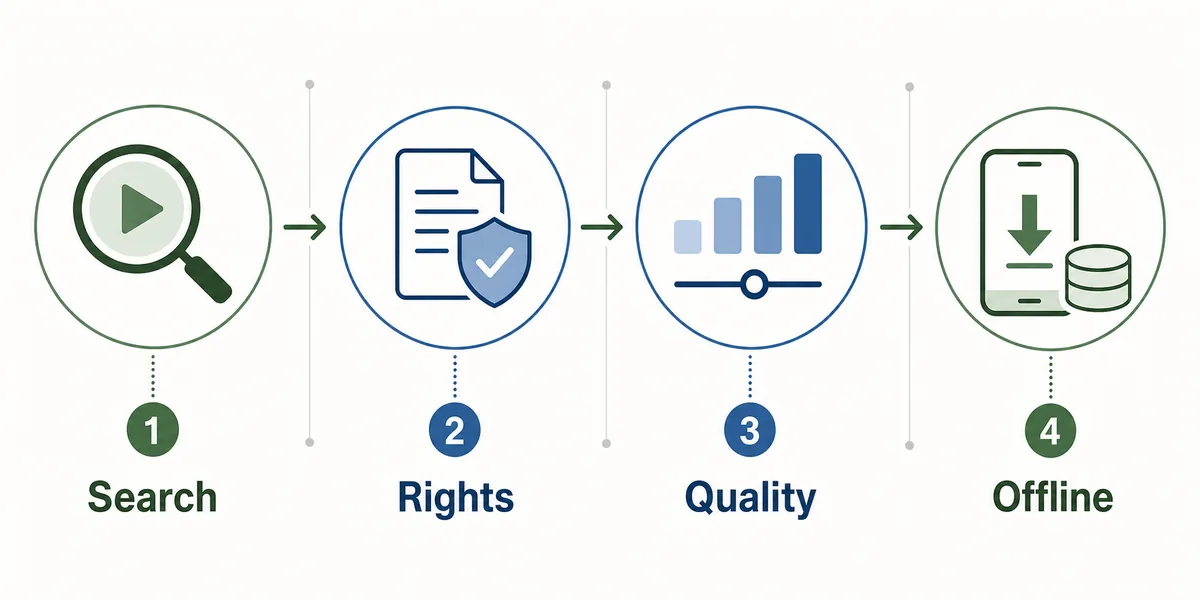
Safe workflow for YouTube video download in VidMate
A careful workflow has four checkpoints: find the video, check whether you are allowed to save it, choose quality, and confirm the offline file. Do not skip straight from a YouTube link to the largest available file. The biggest file is not always the best result on a phone with limited storage, and a download option does not automatically mean you have permission to keep or reuse the video.
Open VidMate, search for the YouTube title or paste the YouTube link if your build supports link handling. Wait for the video page to load and preview enough of the result to confirm that it is not a wrong upload, mirror, or misleading title. If the page shows several copies of the same content, prefer the official channel or the version you have permission to save.
When VidMate shows available formats, choose MP4 for normal video playback and MP3 only when you need audio and have the right to keep it. After the download finishes, open the file once, confirm the duration and quality, and delete failed partial files so they do not waste storage.
Find or paste the YouTube video
Use VidMate search or paste a link, then verify the channel, title, and duration before choosing a format.
Check whether offline saving is allowed
Avoid private, paid, copyrighted, or restricted videos unless you have permission or the platform provides an official offline option.
Select format and quality
Use MP4 for video, MP3 only for allowed audio use, and prefer 720p or 1080p for most phone screens.
Test the saved file
Open the completed file, confirm playback, and remove failed or duplicate downloads.
Which YouTube quality should you choose?
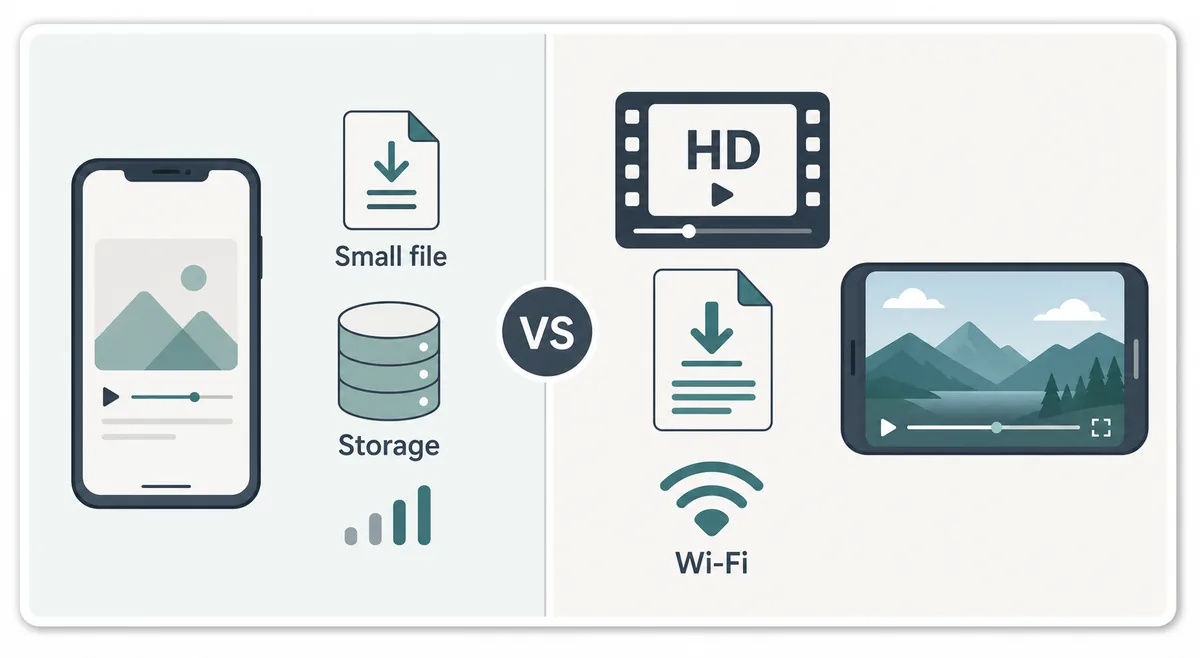
Quality choice is where many VidMate YouTube downloads fail in practice. A 4K file looks attractive in a format list, but it can be unnecessary on a small phone screen and painful on mobile data. A lower quality may finish faster and take less space, while a higher quality is better for casting, tablets, or long-term offline viewing.
Use Wi-Fi for large files and check storage before starting a queue. If the phone has less than a few gigabytes free, choose 360p or 480p for short clips and 720p for important videos. If you plan to watch on a TV or tablet, 1080p can be worth the extra size. Only choose 4K when the source video is genuinely 4K and the device or screen can benefit from it.
| Situation | Suggested quality | Why it fits |
|---|---|---|
| Low storage or mobile data | 360p or 480p MP4 | Smaller files finish faster and reduce failed downloads. |
| Normal phone viewing | 720p MP4 | Good clarity without the file size of Full HD. |
| Tablet, casting, or archive copy | 1080p MP4 | Better detail when the screen is larger and Wi-Fi is available. |
| Audio-only use you are allowed to keep | MP3 or M4A | Avoids storing an unnecessary video track. |
| 4K source and plenty of storage | 4K only if needed | Large files need stable Wi-Fi and enough free space. |
YouTube limits, copyright, and official offline options
A third-party download button is a technical feature, not a permission slip. YouTube’s official terms restrict downloading unless YouTube provides a download feature or the user has another clear permission. That is why this page separates the VidMate workflow from content rights. The safest use cases are your own uploads, videos with explicit permission, public-domain or permissively licensed content, and personal files where the creator allows offline storage.
Do not use VidMate to bypass paid access, region restrictions, age restrictions, private videos, live memberships, rentals, or creator-only distribution. If YouTube Premium offline viewing is available for the video and region, it is often the better choice because it keeps the file inside YouTube’s official app and account rules.
This rights boundary also helps avoid keyword confusion. Queries such as “VidMate APK download” belong to the main APK page. “VidMate MOD APK” belongs to the MOD safety guide. This page is only for the YouTube download workflow and responsible limits.
| Content type | Safer action | Avoid |
|---|---|---|
| Your own uploaded video | Save a copy if you own the rights | Do not redistribute if other people own parts of it. |
| Official creator video | Use official offline or ask permission when needed | Reuploading or extracting audio without rights. |
| Paid, rented, private, or restricted video | Use YouTube’s allowed viewing method | Bypassing access, region, or payment rules. |
| Creative Commons or public-domain style content | Check the exact license and attribution terms | Assuming every public video is free to download. |
Troubleshooting when VidMate cannot download a YouTube video
YouTube download failures are often caused by changing platform behavior, unstable network conditions, old app builds, blocked sources, or insufficient phone storage. Before trying a random mirror or MOD APK, isolate the cause. Test another allowed video, switch from mobile data to Wi-Fi, clear failed partial files, and check whether your VidMate build is current enough for the YouTube page you are opening.
If VidMate shows no format list, the video may be restricted, unsupported, live-only, private, or blocked in your region. If the download starts but fails, check free storage, battery saver, background data limits, and whether Android is stopping the app in the background. If only MP3 extraction fails, try MP4 first to confirm that the source video itself can load.
Avoid “fixes” that ask you to install a patched downloader, disable Play Protect permanently, or grant unrelated permissions. Those are risk signals, not normal troubleshooting steps.
- Try one allowed public video to check whether the issue is video-specific.
- Use Wi-Fi and keep the app open until the first download completes.
- Clear failed partial files before retrying a large HD download.
- Check storage, battery optimization, and unknown-app permissions.
- Use the latest clean APK before considering an old version rollback.
- Do not install MOD APKs or fake YouTube downloader clones as a shortcut.
Keyword fit: what belongs on this page and what does not
Similarweb keyword generator data supports a narrow page for “youtube video download vidmate” because it appears as a phrase-match candidate under the broader VidMate cluster, while “vidmate”, “vidmate apk”, and “vidmate download” are broader homepage terms. The new page should therefore answer YouTube-specific workflow questions without taking over the main APK download intent.
Terms such as “vidmate for pc”, “vidmate ios app”, “vidmate mod apk”, “vidmate old version”, and “is VidMate safe” should stay assigned to their existing dedicated guides. On this page they appear only as contextual internal links or FAQ boundaries, not as competing H1 targets.
| Candidate keyword | Similarweb tab | Action |
|---|---|---|
| youtube video download vidmate | Phrase match under vidmate / vidmate download | Use as the primary new-page topic. |
| vidmate apk download | Phrase match under vidmate apk / vidmate download | Keep assigned to homepage; use only as a contextual internal link. |
| vidmate app | Phrase and related keyword | Use as a supporting phrase, not a separate page. |
| vidmate for pc | Related keyword under vidmate app and lite | Existing PC guide; use as related internal link only. |
| vidmate mod apk | Phrase match under vidmate apk | Existing MOD safety guide; do not fold into this article. |
| how to use vidmate extension for chrome | Question keyword under vidmate | No action now; Chrome extension intent is weak and not supported by this APK site. |
Authoritative references
These official YouTube and Google references explain the download and safety boundaries behind the guidance above.
Related VidMate guides
VidMate YouTube download FAQ
Use VidMate for YouTube only when the workflow and rights both make sense
VidMate can be useful for Android users who need offline access, but a good YouTube download workflow is careful: verify the APK, respect content rights, choose a practical quality, and troubleshoot without switching to risky modified builds.
Download the latest VidMate APK