Quick answer
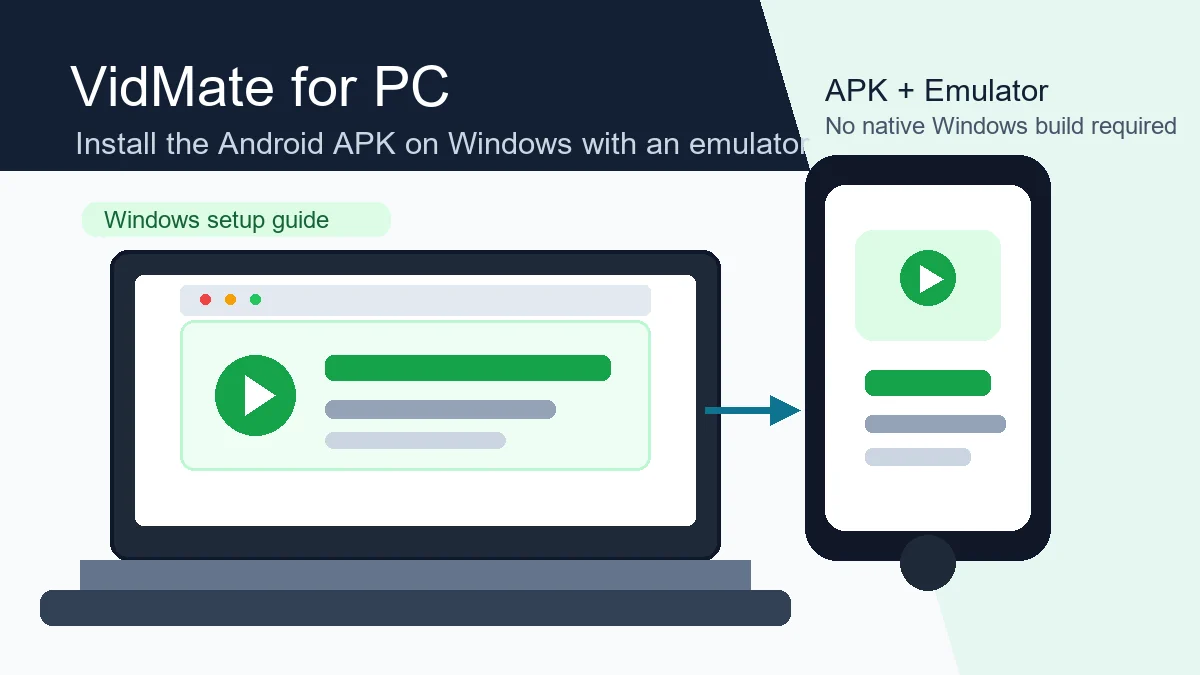
VidMate is an Android APK, not a normal Windows desktop app. When people search for VidMate for PC, they usually want the Android downloader experience on a laptop or desktop. The safest route is to use a trusted Android emulator rather than an unknown Windows EXE file.
PC method
Use an Android emulator on Windows 10 or Windows 11, then install the VidMate APK inside it.
Safety first
Avoid random EXE installers that claim to be VidMate for PC; check the APK version, source, and permissions.
Best fit
A PC setup is useful for larger screens, more storage, keyboard search, and managing downloaded files.
Is VidMate available for PC?
VidMate is an Android APK, not a normal Windows desktop app. When people search for VidMate for PC, they usually want the Android downloader experience on a laptop or desktop. The safest route is to use a trusted Android emulator rather than an unknown Windows EXE file.
Is there a verified native VidMate app for Windows?
The source path checked for this guide presents VidMate as an Android APK. We could not verify a native Windows installer or Microsoft Store listing from the same first-party path, so a search for "vidmate download for pc" should not end with a random EXE. Use an emulator from its own official website and keep the APK source, version, file details, and permissions visible before installation.
Use a reputable Android emulator downloaded from its official website, then install the APK inside that isolated Android environment. This preserves the page's real purpose—using VidMate on a PC—without pretending that an unverified desktop installer is official.
VidMate on PC vs VidMate on Android
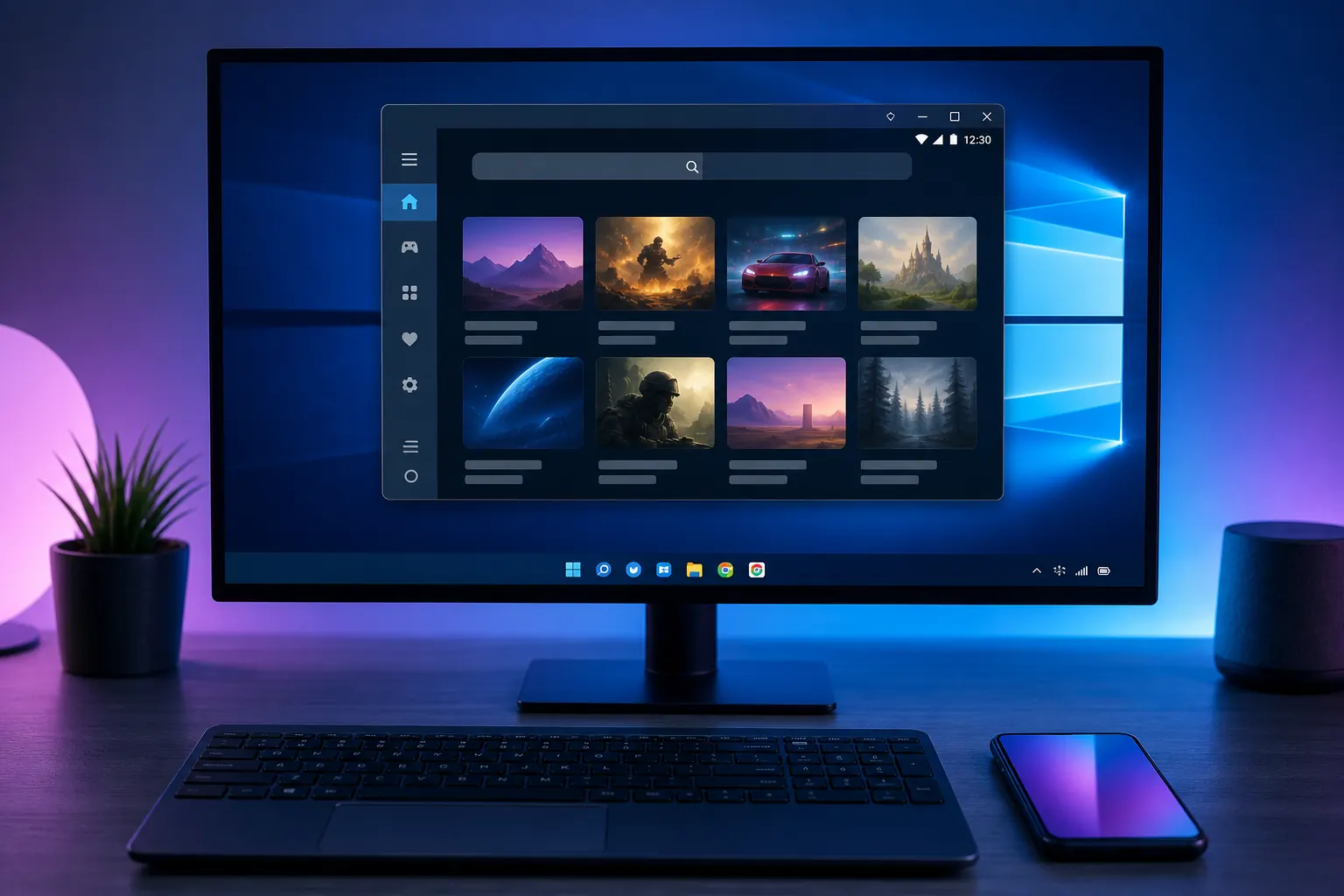
The PC experience is convenient but different from a phone. Windows gives you a larger display, easier typing, more storage, and simpler file organization. Android gives you the native app environment and fewer setup steps.
| Point | VidMate on Android | VidMate for PC with emulator |
|---|---|---|
| Install path | Install APK on Android | Install emulator, then APK |
| Best for | Quick mobile downloads | Large screen and file management |
Recommended Windows requirements
A lightweight emulator can run on many PCs, but video browsing and downloads are smoother with enough memory and disk space. Use Windows 10 or Windows 11, keep graphics drivers updated, and leave room for the emulator and downloaded media.
- Windows 10 or Windows 11
- At least 8 GB RAM
- 10 GB or more free disk space
- Stable Wi-Fi or Ethernet
- Trusted emulator from its official site
How to install VidMate for PC on Windows
Install a trusted emulator from its official website, open the Android environment, download VidMate APK from a clear source, and install the APK inside the emulator. Test with a small download before saving larger videos.

Install a trusted Android emulator
Install a trusted emulator from its official website, open the Android environment, download VidMate APK from a clear source, and install the APK inside the emulator. Test with a small download before saving larger videos.
Open the emulator and finish Android setup
Install a trusted emulator from its official website, open the Android environment, download VidMate APK from a clear source, and install the APK inside the emulator. Test with a small download before saving larger videos.
Download VidMate APK from a clear source
Install a trusted emulator from its official website, open the Android environment, download VidMate APK from a clear source, and install the APK inside the emulator. Test with a small download before saving larger videos.
Install the APK inside the emulator
Install a trusted emulator from its official website, open the Android environment, download VidMate APK from a clear source, and install the APK inside the emulator. Test with a small download before saving larger videos.
Check permissions and test a small download
Install a trusted emulator from its official website, open the Android environment, download VidMate APK from a clear source, and install the APK inside the emulator. Test with a small download before saving larger videos.
Avoid fake VidMate PC installers
Be cautious with pages that hide the file type, force redirects, or promise a one-click Windows installer. VidMate is commonly distributed as an Android APK, so random desktop installers may include unrelated software or outdated packages.
- Do not install a random EXE just because it uses the VidMate name.
- Prefer APK plus emulator over repackaged PC bundles.
- Check file extension, publisher, version notes, and permissions.
- Keep Windows Security and browser protection enabled.
- Delete files that do not match the source described on the page.
Troubleshooting VidMate on PC
If installation fails, confirm the APK downloaded completely and the emulator supports APK installation. If downloads are slow, check emulator network settings, Windows firewall prompts, and disk space.
Responsible use and safety notes
Running VidMate on a PC does not change your responsibility for downloaded content. Save only content you own, have permission to download, or can legally store in your location.
Official safety references
Official safety references
Next steps
VidMate for PC FAQ
Bottom line
VidMate is an Android APK, not a normal Windows desktop app. When people search for VidMate for PC, they usually want the Android downloader experience on a laptop or desktop. The safest route is to use a trusted Android emulator rather than an unknown Windows EXE file.
Download VidMate APK