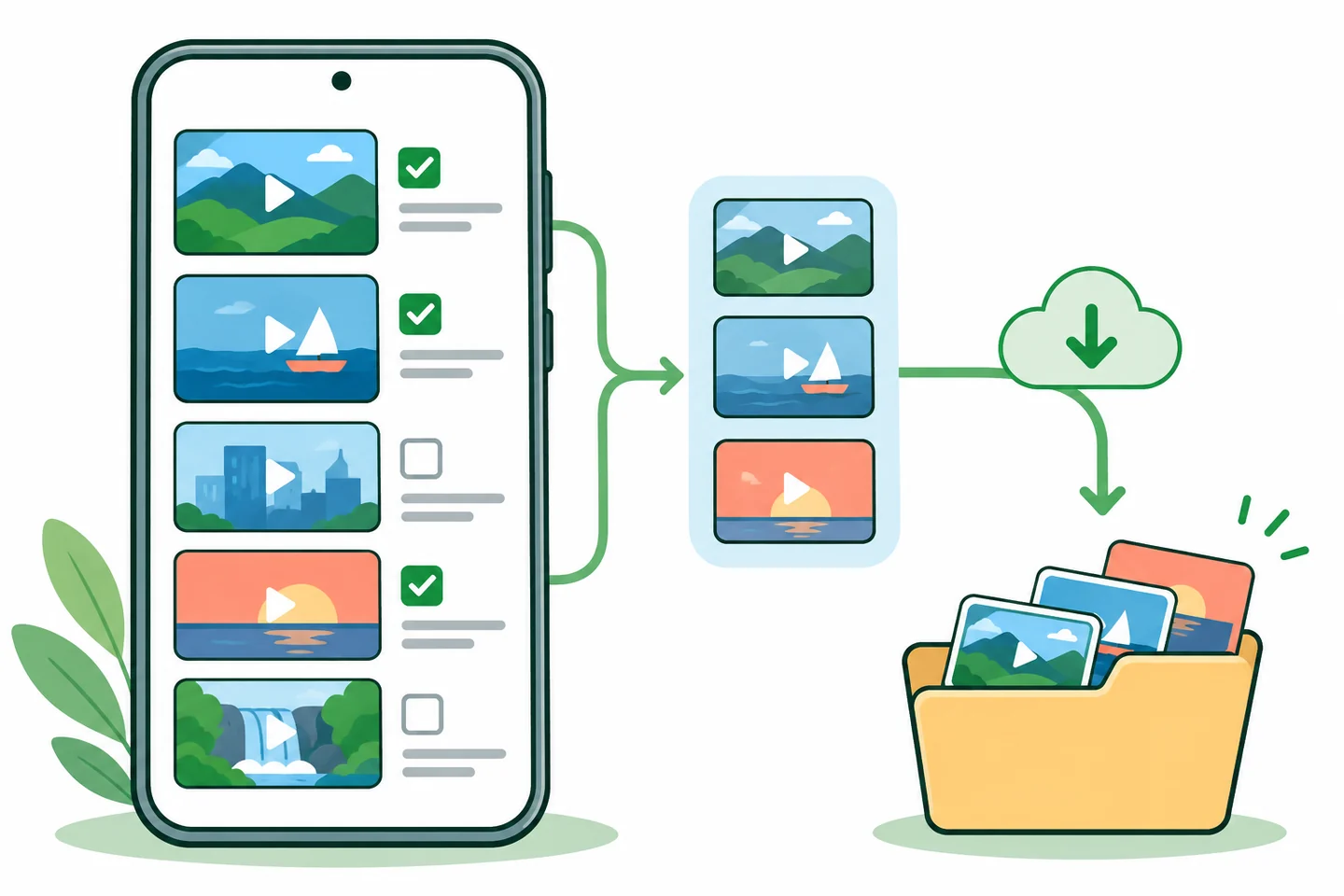
What does the VidMate download manager do?
The VidMate download manager is the part of the Android app that tracks media tasks after you choose a permitted source item. A useful workflow is to read each visible state, pause or resume one task when the control is available, retry only after checking the source, connection, storage, and permissions, and verify the completed file. A queue icon does not prove that every source or VidMate build supports playlist importing, background work, or the same controls. Treat the manager as a task monitor, not as a reason to bypass access rules or install an untrusted modified APK.
Read status first
Separate waiting, active, paused, complete, and failed items before tapping again.
Recover one task
Check the cause and retry a single permitted item instead of restarting an entire queue.
Budget space
Leave room for the final media file, temporary data, and Android updates.
What the VidMate download manager actually does
The phrase VidMate download manager describes a task area inside the Android app, not a separate Windows program or a guaranteed cloud service. It may show several media requests, their progress, an estimated speed, and actions such as pause, resume, cancel, or open. The exact labels depend on the installed build, Android version, source page, and the type of media you selected. This guide therefore explains how to reason from the state that is visible on your phone instead of promising a button that every user will see.
A download task has a clear boundary. It begins after a source item is recognized and you choose an offered format or quality. It ends when a stable file is written to a storage location and can be opened. The manager can organize that process, but it cannot make a private, removed, paywalled, DRM-protected, or login-only item available. Save only media that you own, have licensed, or are explicitly allowed to keep offline.
This page focuses on cross-source task control: queue order, background behavior, pause and resume, failed entries, and storage decisions. A playlist guide explains how to choose multiple items; a download-folder guide explains where a completed file went; and the player guide handles a file that exists but will not play. Keeping those jobs separate makes a retry safer and avoids unnecessary APK changes.
Read VidMate download queue states before tapping again
Start by taking a snapshot of the queue. Note the item title, source, selected format, current size, and state. Repeated taps on a slow item can create duplicate tasks, so wait for the status to change before using the same action again. If the app exposes a detail view, open it and record the last visible error rather than relying on a notification that disappears.
The words used by the VidMate download manager may differ, but the meaning is usually similar. Waiting means the task has not started or is behind another item. Active means data is moving. Paused means the job is intentionally stopped or the app has suspended it. Complete means a final file should exist, while failed means the request ended without a usable result. A task that shows complete but has a zero-byte or changing file still needs verification.
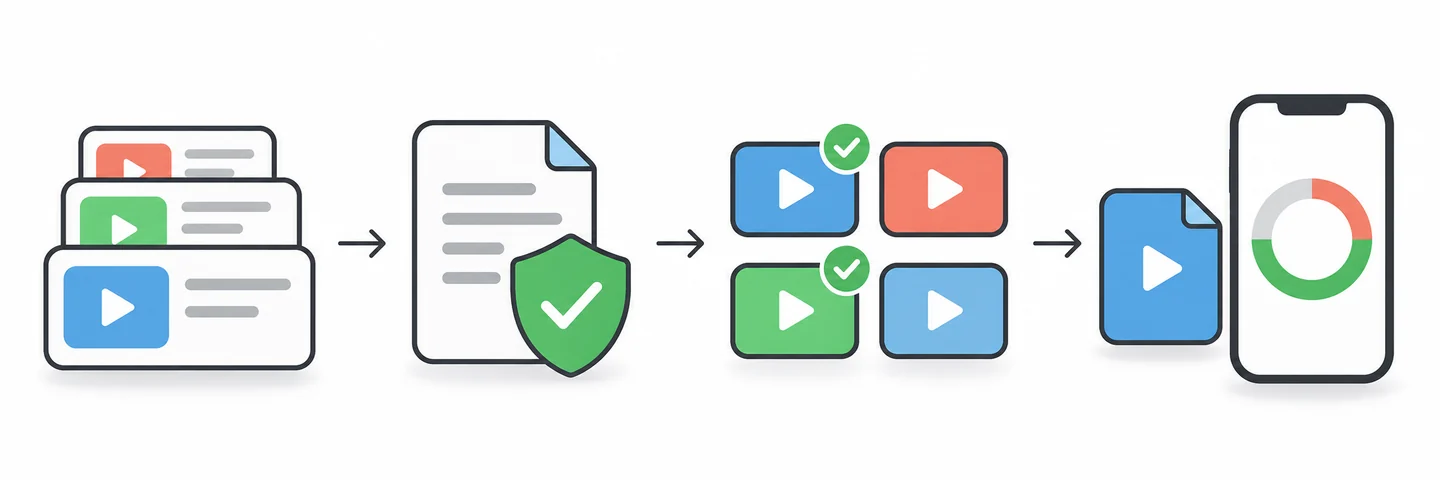
| Queue state | What it usually means | Safe next action |
|---|---|---|
| Waiting | The task is queued behind another item or waiting for a connection | Keep one small test item and confirm that the active task progresses |
| Active | The manager is receiving data and may show speed or a progress bar | Leave the phone awake or charging when needed and avoid duplicate taps |
| Paused | The task was stopped by the user, the app, or a temporary condition | Resume once the source, connection, battery, and free space are ready |
| Complete | The app reports a finished transfer | Open the file, check its size and name, and confirm the destination |
| Failed | The request ended without a verified usable file | Record the message, fix one likely cause, then retry only that item |
Pause, resume, and restart one VidMate task safely
Pause and resume are useful when a connection changes, storage is nearly full, or you need to protect battery and mobile data. They are not a repair for an unavailable source. Before resuming, confirm that the source page still opens, the same item is still public to you, and the task is still listed in the manager. If the app has removed the entry, start a new controlled request instead of guessing where a partial file belongs.
Use the smallest useful recovery. One short permitted item can tell you whether the source, network, storage, and file path are healthy. If it completes and plays, return to the next item. If it fails again, keep the error evidence and stop repeating the same action. A queue that is stuck after a phone restart may need an app reset, but changing to a modified APK can introduce a larger security and permission problem.
Record the task
Write down the title, source, format, state, visible error, and the last known file size before touching pause or retry.
Check the cause
Open the source, test the connection, check battery and free storage, and review only the permissions that Android and the task require.
Resume once
Use the visible resume control when the task remains valid. Wait for a measurable change instead of tapping repeatedly.
Retry one item
If resume is unavailable, cancel the stale entry and create one new request for the same permitted item, not the whole queue.
Verify the result
When the state becomes complete, open the file, seek through a short section, and compare the name and size with the queue record.
Plan storage, quality, and batch size
A queue can consume more space than the final files suggest. Android may keep temporary data while a task is active, and a failed transfer can leave a partial file until it is removed. Add the displayed sizes of the items you intend to save, leave a buffer for temporary data and system updates, and avoid starting a long queue on a nearly full phone. If the app does not show a size before starting, use a small test item and check the result before adding more.
Quality is a storage decision as well as a picture decision. A large display may justify a higher resolution, while a small phone or a limited data plan may not. Keep the format and resolution that the source actually offers. Do not assume that a larger number means better playback on every device, and do not change quality mid-retry until you know whether the real problem is a missing source, a full disk, or a decoder limitation.
For a long list, create a simple record outside the app: item title, queue state, final filename, and storage path. That record helps you resume after a battery shutdown and makes it easier to remove only incomplete files. It also keeps a playlist workflow distinct from the manager's job of tracking tasks.
| Choice | When it helps | What to check |
|---|---|---|
| Small test queue | First use with a source or after an app update | The source is recognized, the status changes, and one file opens |
| Standard quality | Limited storage, mobile data, or a small screen | The offered format is acceptable and enough free space remains |
| Higher quality | A larger display and stable Wi-Fi | Final size, temporary space, battery, and device decoder support |
| One task at a time | The queue is unreliable or the source is inconsistent | Use the supported single-item flow and keep a written record |
| SD card destination | Internal storage is limited | The card is mounted, writable, healthy, and visible to Android |
Fix a VidMate download that failed
A failed task is a symptom, not a diagnosis. The source may have changed, the network may have timed out, the selected format may no longer be offered, the phone may be out of space, or Android may have restricted access to the destination. Start with the error text and the smallest test. Do not delete the whole queue before you know whether one source item or the entire app is affected.
If only one item fails, compare it with a short permitted item from the same source. If both fail, compare a different allowed source. This simple comparison separates source availability from device and manager problems. If every task fails after an app update, check the version and source through the existing APK and safety guides before installing anything else. Never use a mirror's promise of a newer version as proof that it will fix the queue.
When the task leaves a partial file, keep the name and size long enough to identify it, then remove it only after confirming that the manager is no longer active. A partial file should not be renamed to look complete. If the file is complete but missing from the library, continue with the download-folder guide. If it is visible but has no sound or picture, continue with the player guide.
- Read and record the exact error before retrying.
- Test the source in a normal browser or supported app view without bypassing access controls.
- Check Wi-Fi or mobile data, battery, free storage, and the destination volume.
- Retry one permitted item once after correcting the most likely cause.
- Remove only confirmed incomplete temporary files; preserve a completed original until its copy is tested.
- Stop and review the APK source and permissions if the app requests unrelated access or security changes.
Separate manager, folder, and player problems
The same missing video can look like three different failures. A manager problem ends with a task that will not start, pause, resume, or complete. A folder problem leaves a completed file somewhere on the phone but hides it from the app library. A player problem begins after a complete file is visible but has no image, no audio, stutters, or refuses to seek. Each boundary has a different next check.
Use the result of one controlled test to choose the next guide. If the queue never creates a stable file, stay with the source, network, storage, and task state. If the file manager finds a complete file that VidMate does not list, inspect its path and media index. If another player opens the file but VidMate does not, compare format and playback support rather than downloading a second copy. This avoids treating every failure as an APK installation problem.
The manager also does not replace the platform rules for the source. A visible button is not permission to copy private or protected media. For licensed or owned files, keep the source record and a local list of completed items. For everything else, use the platform's own offline feature or leave the item on the source service.
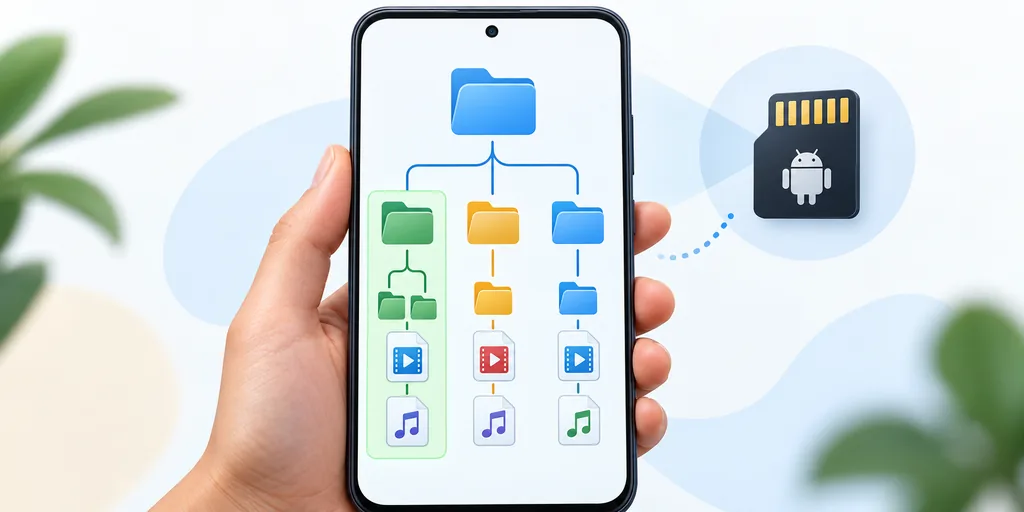
| Observed result | Likely boundary | Next guide |
|---|---|---|
| No stable file is created | Source, network, format, storage, or manager state | This manager guide and the relevant source guide |
| Complete file exists but is not listed | Folder visibility, media index, or access | VidMate Download Folder guide |
| File opens but has no sound or picture | Format, decoder, audio route, or playback | VidMate Player guide |
| APK will not install | Package source, Android settings, or permissions | VidMate APK Install guide |
| Source or version looks unclear | Release freshness and package identity | Latest Version and Safety guides |
Use a safer download-manager routine
Keep the routine boring and observable: use an allowed source, start a small request, read the queue, correct one cause, and verify the final file. Save the date, title, format, and destination when a queue matters. This makes a later pause or resume understandable and prevents a pile of duplicate or partial files.
Review permissions in Android's settings and keep Play Protect and security updates enabled. A manager should not require contacts, SMS, accessibility control, device administration, or a certificate unrelated to saving media. If a page asks you to disable protection or install a helper to unlock a missing queue button, stop and reassess the source instead of forcing the workflow.
Finally, remember that the manager is an app feature, not a verification service. The product pages reviewed for this guide describe download and queue behavior, but they do not establish identical support for every source, region, build, or file format. Treat the visible state on your phone and the official source information as the evidence for your own task.
- Use only media that you own, licensed, public domain, or otherwise authorized to save.
- Keep a small queue until one completed file has been opened and checked.
- Leave enough space for temporary data and Android updates.
- Keep security protections enabled and grant only task-related permissions.
- Use the official platform offline feature when a source does not permit downloading.
Sources and platform references
These references provide product and Android context. They do not prove that every VidMate build supports the same queue controls or that a source permits copying.
Related VidMate guides
VidMate download manager FAQ
Start with one visible, permitted task
A reliable VidMate download manager routine is a sequence of small checks: choose an allowed source, record the queue state, pause or resume one task when the control is present, correct one likely cause, and verify the completed file. When the result points to a folder, player, installer, or source problem, follow the matching guide instead of repeating the same download or replacing the APK without evidence.
Find the VidMate download folder